
How to Reset .htaccess
How to Reset .htaccess in WordPress and Restore the Default File
A corrupted or incorrectly configured .htaccess file can break WordPress permalinks, redirects, wp-admin access, and even make your website return 403 or 500 errors. In this guide, you will learn how to safely reset .htaccess, restore the default WordPress rules, and troubleshoot common .htaccess problems.
To reset the WordPress .htaccess file, first create a backup,
rename or remove the existing file, then go to
WordPress Dashboard → Settings → Permalinks and save
the permalink settings again. WordPress can regenerate its standard
rewrite rules when the server supports Apache's mod_rewrite.
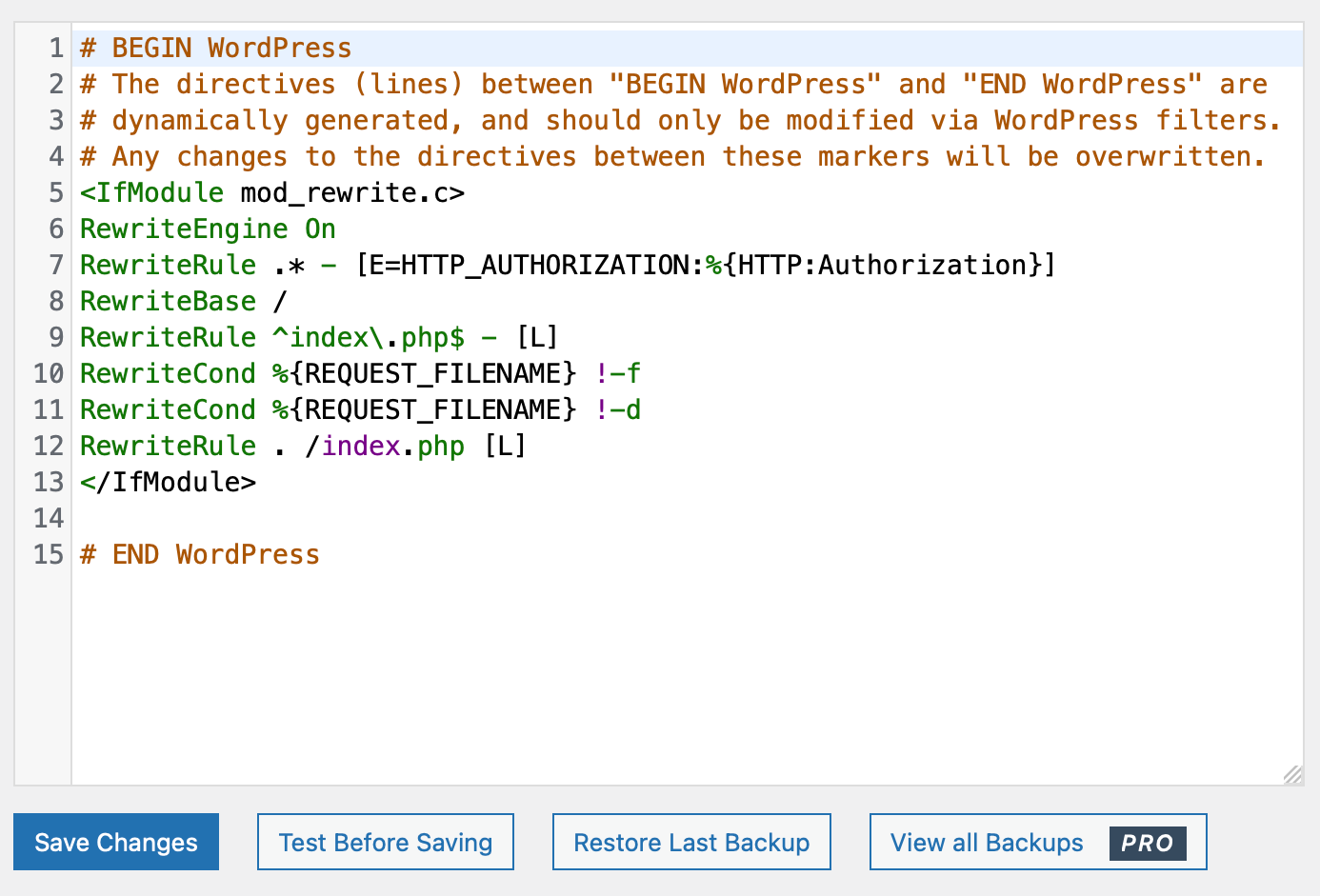
Table of Contents
- What Is the .htaccess File?
- Why Would You Need to Reset .htaccess?
- What to Do Before Resetting .htaccess
- How to Reset .htaccess in WordPress
- Default WordPress .htaccess Code
- How to Reset .htaccess Manually
- Regenerate .htaccess Through WordPress
- Common .htaccess Errors After Resetting
- Does Resetting .htaccess Affect SEO?
- Frequently Asked Questions
What Is the .htaccess File?
The .htaccess file is a configuration file used by Apache web servers to control certain server behavior at the directory level.
In WordPress, the file is most commonly used to control URL rewriting
and pretty permalinks. WordPress uses Apache rewrite rules to send
requests for WordPress URLs to index.php.
According to the official WordPress documentation, the .htaccess file is used to manipulate how Apache serves files and directories, especially when WordPress pretty permalinks are enabled.
You can learn more from the official WordPress .htaccess documentation .
Why Would You Need to Reset .htaccess?
You may need to reset .htaccess in WordPress when the existing file contains invalid, outdated, conflicting, or unnecessary rewrite rules.
A broken .htaccess file can cause problems that look like WordPress, plugin, theme, or hosting issues even though the actual problem is a server configuration rule.
Common Symptoms of a Corrupted .htaccess File
- WordPress pages suddenly return a 404 error.
- The homepage works but internal pages do not.
- Pretty permalinks stop working.
- WordPress admin pages return errors.
- The website displays a 403 Forbidden error.
- The website displays a 500 Internal Server Error.
- Redirects create unexpected loops.
- HTTP and HTTPS redirects conflict with each other.
- Old plugin rules continue affecting the website.
- A migration causes unexpected rewrite behavior.
Never overwrite or delete an existing .htaccess file without creating a backup first. Your current file may contain important custom redirects, security rules, caching rules, or hosting-specific configuration.
What to Do Before Resetting .htaccess
Resetting .htaccess is usually simple, but the safest approach is to preserve the current configuration before changing anything.
Step 1: Create a Backup
Download the current .htaccess file to your computer.
If the reset causes an unexpected issue, you can restore the
previous version.
Step 2: Check for Custom Rules
Look for custom redirects, security rules, caching directives, compression rules, or rules added by plugins.
Step 3: Identify Your Web Server
The traditional WordPress .htaccess method applies to Apache servers. If your website uses Nginx, .htaccess is not the normal configuration method.
You can read more about Apache's rewrite engine in the official Apache mod_rewrite documentation .
How to Reset .htaccess in WordPress
There are two common approaches to resetting the WordPress .htaccess file.
- Regenerate the rewrite rules from the WordPress dashboard.
- Replace the existing file manually with the default WordPress rules.
For most WordPress websites, regenerating the permalink rules from the WordPress dashboard is the easiest option.
Default WordPress .htaccess Code
A standard WordPress installation using Apache and pretty permalinks commonly uses the following rewrite configuration.
# BEGIN WordPress

<IfModule mod_rewrite.c>

RewriteEngine On

RewriteRule .* - [E=HTTP_AUTHORIZATION:%{HTTP:Authorization}]

RewriteBase /

RewriteRule ^index\.php$ - [L]

RewriteCond %{REQUEST_FILENAME} !-f

RewriteCond %{REQUEST_FILENAME} !-d

RewriteRule . /index.php [L]

</IfModule>

# END WordPress
These are the basic rewrite rules documented by WordPress for a standard Apache installation. WordPress can generate these rules when the permalink settings are saved.
How to Reset .htaccess Manually
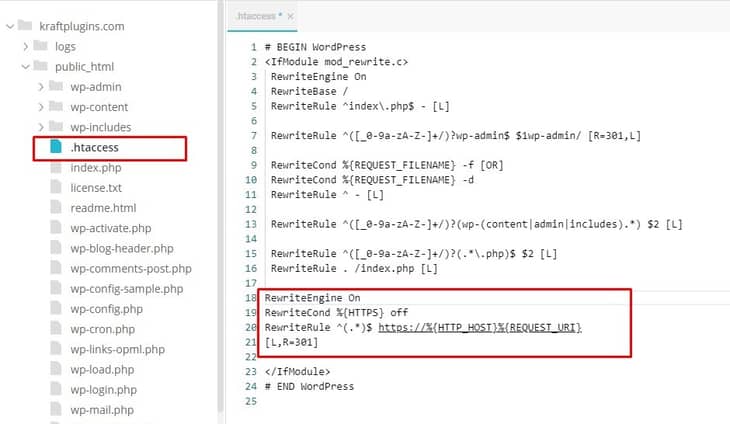
If you cannot access the WordPress dashboard, you can reset the .htaccess file manually using your hosting file manager, FTP, or SFTP.
Step 1: Open Your Website Root Directory
Open the directory containing your WordPress installation.
Depending on your hosting provider, this may be called
public_html, htdocs, or another
document root.
Step 2: Enable Hidden Files
The dot at the beginning of .htaccess means that
the file may be hidden by default in some file managers.
Enable the option to display hidden files if you cannot find it.
Step 3: Back Up the Existing File
Download a copy of the current file before making any changes.
Step 4: Rename the Existing .htaccess File
Instead of immediately deleting the file, rename it temporarily. For example:
.htaccess-backupStep 5: Regenerate the File
Log into WordPress and open:
Dashboard → Settings → Permalinks
You can simply open the Permalinks screen and save the current permalink settings again.
WordPress documentation explains that visiting the Permalinks screen triggers a flush of the rewrite rules.
Step 6: Test the Website
Test the homepage, several internal pages, posts, categories, login page, WooCommerce pages, and any important redirects.
How to Regenerate .htaccess Through WordPress
If your WordPress dashboard is accessible, you usually do not need to manually write the entire .htaccess file.
1. Open WordPress Dashboard
Log into your WordPress administration area.
2. Go to Permalinks
Navigate to:
Settings → Permalinks
3. Save Changes
Keep your current permalink structure and click Save Changes.
WordPress will flush its rewrite rules and, when the environment allows it, update the .htaccess rules.
If your WordPress dashboard works normally, use the Permalinks screen before manually editing .htaccess. It is generally the simplest way to regenerate WordPress rewrite rules.
What If You Cannot Access WordPress Admin?
A broken .htaccess file can sometimes prevent you from reaching WordPress administration.
In that situation, use your hosting control panel, FTP, or SFTP to access the WordPress installation directly.
Rename the existing .htaccess file instead of deleting
it immediately. Then try accessing the website again.
If the website starts working after renaming the file, the old configuration is a strong candidate for the problem.
Common .htaccess Errors After Resetting
1. Internal Server Error 500
A 500 error can occur when Apache encounters an invalid directive, unsupported configuration, or another server-level problem.
If a default WordPress .htaccess file still produces a 500 error, the problem may not be the WordPress rewrite rules themselves.
2. 404 Errors on Internal Pages
If the homepage works but WordPress posts and pages return 404 errors, check the permalink structure and Apache rewrite configuration.
3. Redirect Loops
Redirect rules for HTTP to HTTPS, www to non-www, domain migrations, or old URLs can conflict with each other.
After resetting .htaccess, review any custom redirect rules that were previously added to the website.
4. WordPress Cannot Update .htaccess
WordPress may display a message telling you that the .htaccess file is not writable.
In that situation, WordPress can display the rewrite rules that need to be copied manually into the file.
See the official WordPress Permalinks documentation for more information.
What Happens to Custom .htaccess Rules?
This is one of the most important things to understand before resetting the file.
Your .htaccess file may contain much more than WordPress's default rewrite rules.
For example, you may have rules for:
- 301 redirects
- HTTPS enforcement
- www or non-www redirects
- Security restrictions
- Cache configuration
- Compression
- Blocking specific requests
- Custom error pages
Resetting the file may remove those custom rules if you replace the entire file with the default WordPress configuration.
If the website previously had custom redirects or security rules, compare the old backup with the newly generated file before permanently deleting anything.
Does Resetting .htaccess Affect SEO?
Resetting .htaccess does not automatically damage SEO. However, the rules inside the file can directly affect how URLs are served, redirected, or accessed.
This means an incorrect reset can create SEO problems even though the reset itself is not an SEO penalty.
SEO Problems That Can Happen After an Incorrect Reset
- Important 301 redirects may disappear.
- Old URLs may start returning 404 errors.
- HTTP URLs may stop redirecting to HTTPS.
- www and non-www versions may behave differently.
- Migrated URLs may lose their redirect paths.
- Internal URLs can become inaccessible.
For this reason, always test important URLs after resetting .htaccess.
SEO Checklist After Resetting .htaccess
- Check the homepage.
- Check important pages.
- Check blog posts.
- Check category and archive URLs.
- Check HTTPS.
- Check www/non-www behavior.
- Test important 301 redirects.
- Check for redirect loops.
- Test WordPress login.
- Test WooCommerce checkout if applicable.
- Check Google Search Console for new indexing or crawling errors.
Can .htaccess Be Used for WordPress Security?
Yes. Apache .htaccess rules can be used for certain security-related restrictions, although they should be implemented carefully.
WordPress provides examples of using Apache rewrite rules to restrict access to certain files and directories.
You can read the official WordPress hardening documentation for security-related configuration examples.
What Permissions Should .htaccess Have?
File permissions depend on your hosting environment, ownership model, and server configuration.
WordPress documentation commonly discusses 644 as a
normal permission for .htaccess, while emphasizing that permissions
should be as restrictive as practical.
Do not blindly change permissions to 777 just because
WordPress cannot write to the file.
If WordPress cannot update .htaccess, first investigate ownership and permissions with your hosting provider or server administrator.
Reset .htaccess vs Delete .htaccess
| Action | What It Means | Recommended? |
|---|---|---|
| Backup | Saves the current configuration | Yes |
| Rename | Temporarily disables the old file | Yes |
| Regenerate | Creates WordPress rewrite rules again | Yes |
| Delete permanently | Removes the previous configuration | Only after backup |
Troubleshooting .htaccess Problems Step by Step
Step 1: Backup the Current File
Always preserve the existing configuration.
Step 2: Temporarily Rename .htaccess
This allows you to test whether the file is responsible for the problem.
Step 3: Test the Website
Check whether the homepage and WordPress dashboard become accessible.
Step 4: Regenerate WordPress Rules
Open Settings → Permalinks and save the current permalink settings.
Step 5: Test Important URLs
Check pages, posts, categories, redirects, login, and WooCommerce functionality.
Best Practices for Managing WordPress .htaccess
- Always create a backup before editing .htaccess.
- Keep custom rules organized.
- Avoid adding unnecessary rewrite rules.
- Test redirects after making changes.
- Do not copy random .htaccess snippets without understanding them.
- Keep WordPress, plugins, and themes updated.
- Use staging when making complex server-level changes.
- Keep a copy of important custom redirects.
Final Answer: The Safest Way to Reset .htaccess
If you need to reset .htaccess in WordPress, the safest general process is:
- Back up the existing .htaccess file.
- Rename the old file if possible instead of deleting it immediately.
-
Check that your website uses Apache and supports
mod_rewrite. - Open WordPress → Settings → Permalinks.
- Save the existing permalink settings.
- Test the website and important URLs.
- Restore any custom redirects or server rules that are still required.
For a standard WordPress installation, the default rewrite rules are relatively small. The important part is not simply replacing the file, but understanding what custom configuration existed before the reset.
Frequently Asked Questions About Resetting .htaccess
Back up your existing .htaccess file, then open WordPress → Settings → Permalinks and save the current permalink settings. WordPress can regenerate its standard rewrite rules when the server configuration allows it.
The default WordPress .htaccess configuration contains Apache rewrite rules that route requests to WordPress's index.php while allowing existing files and directories to be served directly.
You can recreate the WordPress rewrite rules, but you should always back up the existing file first because it may contain custom redirects, security rules, caching settings, or other server configuration.
Files beginning with a dot are often treated as hidden files. Enable the option to display hidden files in your hosting file manager or FTP/SFTP application.
Resetting .htaccess does not automatically hurt SEO. However, removing important redirects or changing URL behavior can create SEO problems. Always test important URLs and redirects after making changes.
Traditional .htaccess configuration is associated with Apache. Nginx normally uses server block configuration instead of .htaccess files.
Yes. Plugins and other server-level tools may add or modify .htaccess rules. This is one reason you should inspect and back up the existing file before resetting it.
Official Resources
Still Having .htaccess Problems?
If your WordPress website is returning 404, 403, 500 errors, redirect loops, or broken permalinks after changing .htaccess, do not keep adding random rules.
Start with a backup, restore the standard WordPress rewrite rules, test the website, and then identify which custom rule is causing the problem.